Sharing photos through email is convenient, but large image files can quickly become a problem. High-resolution pictures from modern phones and cameras often contain more data than an email attachment needs. Learning how to compress and email photos can make attachments easier to send, faster to upload, and more convenient for recipients to download. Tools such as Lovely-Imgs can also help with everyday image conversion and optimization tasks through the browser.
When several pictures are attached to the same message, the total file size can become even larger. This may lead to attachment limits, slow uploads, or difficulty sending messages over a weaker connection. Knowing how to make photos smaller for email lets you reduce unnecessary file size while keeping the image suitable for viewing, sharing, or basic documentation.
Why Are Photos Too Large for Email?
Photos can be large because cameras and smartphones capture images at high resolutions. A single picture may contain millions of pixels and additional metadata, while modern image formats can preserve substantial visual information.
For email, you usually do not need the full resolution required for printing or professional editing. A smaller version can often look almost identical on a phone or computer screen while using considerably less storage.
Another factor is the number of photos being attached. Ten individually reasonable images can become a large combined attachment. This is why compress pics for email is a common requirement for students, businesses, photographers, families, and anyone who regularly shares images.
How to Compress Photos for Email
The easiest approach is to create smaller copies of your original photos rather than changing the originals. This allows you to keep high-resolution files safely stored while preparing email-friendly versions for sharing.
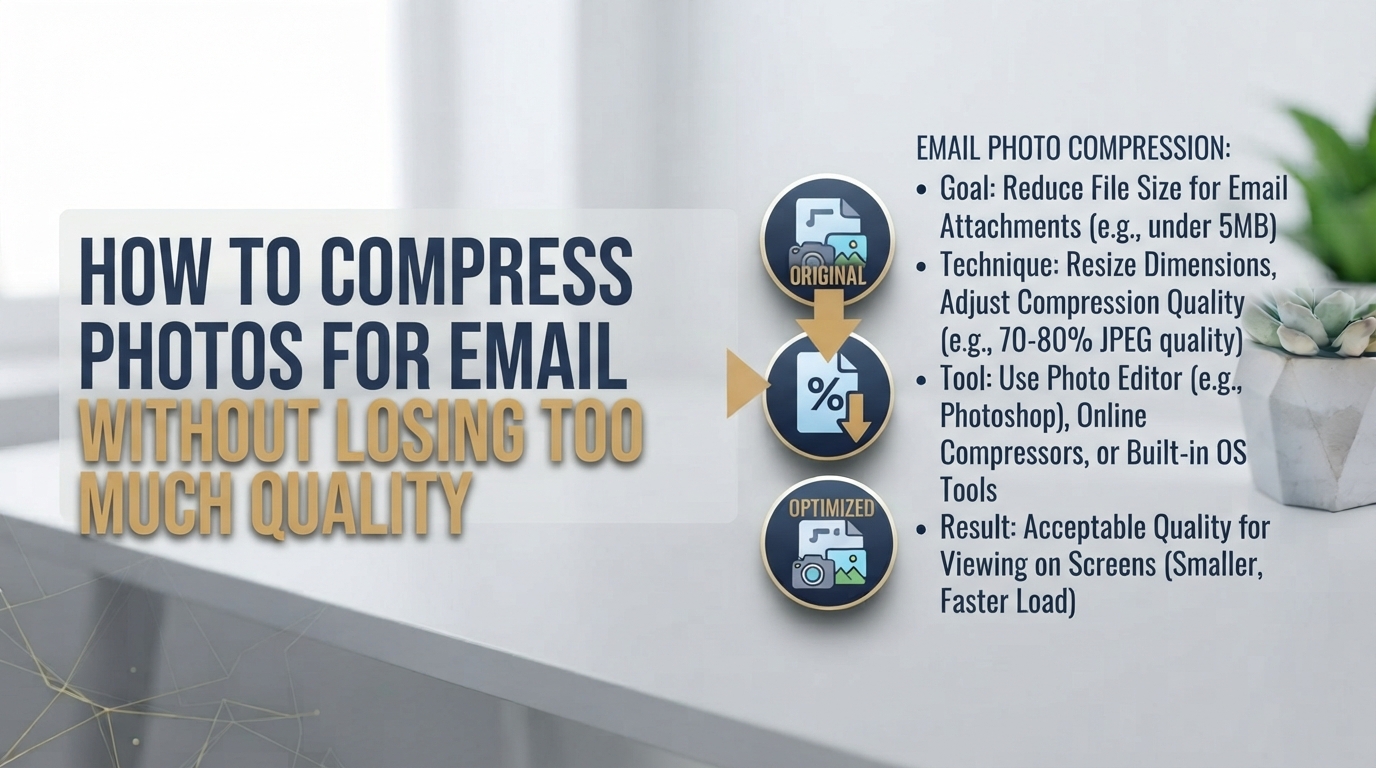
Start by checking the dimensions and file format of your images. If a photo is several thousand pixels wide, resizing it to a more practical viewing size can significantly reduce its file size. You can then apply suitable compression to remove unnecessary data.
If you need to change the format as part of your workflow, an online image converter can be useful for preparing files before sending them. The important point is to choose a format and quality level appropriate for the purpose rather than automatically using the highest possible quality.
Simple Ways to Make Images Smaller for Email
There are several practical ways to reduce an image before attaching it to an email.
Resize the image: Reducing the width and height is often one of the fastest ways to lower file size. A photo intended only for viewing on a screen rarely needs its original camera resolution.
Choose an appropriate format: JPG is commonly used for photographs because it can provide a good balance between visual quality and file size. PNG is useful when transparency or lossless image quality is important, but it can produce larger files for some types of images.
Adjust compression quality: Moderate compression can substantially reduce file size. Avoid using extremely aggressive compression if preserving fine details is important.
Remove unnecessary copies: Instead of repeatedly editing and saving the same file, keep one original and create a compressed copy specifically for sharing.
Use multiple smaller attachments when appropriate: If an email system has a strict attachment limit, splitting files between messages may be an option. Cloud-sharing services can also be useful for very large collections.
What If You Want to Send Pictures in Another Format?
Sometimes the goal is not simply to make a photo smaller. You may need to convert an image into another format for compatibility or presentation.
For example, if you are preparing a series of JPG images for a simple animated sequence, a jpg to animated gif converter online can turn compatible JPG images into GIF-based content. GIF is particularly useful for simple graphics, short animations, and situations where broad compatibility matters.
However, GIF is not always the best choice for ordinary photographs. GIF supports a limited color palette, so a heavily detailed photograph may show more visible quality loss than it would in JPG. For regular email photography, resizing and moderate JPG compression will often be more appropriate.
How Do I Compress Pictures for Email Without Ruining Them?
The key is to balance file size and visual quality. There is no single compression setting that works perfectly for every image because photographs, screenshots, illustrations, and graphics contain different amounts of visual information.
For a normal photograph, start by reducing its dimensions and then use moderate compression. Open the smaller version and compare it with the original. If faces, text, textures, or other important details still look clear, the file is probably suitable for email.
It is also helpful to keep your original image untouched. This gives you a high-quality backup if you later need the photograph for printing, editing, or another project.
Compress and Email Photos: A Practical Workflow
A simple workflow can make repeated image sharing much easier.
First, collect the images you want to send and remove unnecessary duplicates. Next, resize very large photographs to dimensions appropriate for the recipient’s likely viewing device. Then compress the images and check their final file sizes.
If your project involves image conversion as well as compression, you can use a browser-based tool to handle the conversion without installing desktop software. For example, the JPG to GIF converter can be useful when your purpose specifically calls for the GIF format.
After processing the files, rename them clearly if needed and attach the smaller copies to your email. Always preview the attachments before sending so you can confirm that the correct versions were selected.
When Should You Use GIF Instead of JPG?
JPG and GIF serve different purposes. JPG is generally well suited to photographs because it can store millions of colors and achieve relatively small file sizes through lossy compression.
GIF is better suited to simple graphics, icons, illustrations, and animations with limited colors. A single JPG can be converted into a static GIF, while creating an animated GIF generally requires multiple frames or images.
If you’re interested in the differences between the formats and the conversion process, the JPG-to-GIF conversion guide provides additional information about converting images, creating animated GIFs, and managing quality.
Tips for Sending Photos by Email
A few habits can make photo sharing more reliable:
- Keep original high-resolution photos separate from email-ready copies.
- Resize oversized images before uploading them.
- Use JPG for many standard photographic attachments.
- Check the total size of multiple attachments.
- Avoid repeatedly compressing the same image.
- Preview compressed files before sending them.
- Use a cloud-sharing option when the collection is too large for email.
- Use GIF when animation or simple graphics are the actual requirement.
The goal is not to make every image as small as possible. Instead, aim for a file that is small enough to send conveniently while retaining the quality the recipient actually needs.
Frequently Asked Questions
1. How do I compress photos for email?
Resize large photos, choose an appropriate format, and apply moderate compression. Keeping the original files separately allows you to create smaller copies without losing the high-resolution versions.
2. How can I make photos smaller for email?
Reducing image dimensions is one of the simplest methods. You can also adjust JPG quality or convert the image to a more suitable format depending on how it will be used.
3. What image format is best for email photos?
JPG is often a practical choice for photographs because it can provide a good balance between quality and file size. PNG and GIF are better suited to particular use cases such as transparency, graphics, or simple animation.
4. Can I send pictures without compressing them?
Yes. You can attach the original files if they fit within your email provider’s attachment limits. For very large images, sharing them through cloud storage can preserve the original quality without putting the entire file directly into the email.
5. Can JPG images be converted into GIFs before emailing?
Yes. JPG images can be converted into GIF format. A single image can produce a static GIF, while multiple images can be used for an animated sequence when the conversion tool supports animation.